Internet Tips and Tricks
Google Background Image
Recently Google allow user to add a background image to the Google homepage. Visit www.google.com, and you should see a “Change background image” at the bottom left of the google homepage.
Google Pac-Man, Visit www.google.com Today
Google Chrome Quick Search
I am not sure what this feature is called under Google Chrome, I am going to call it as “Quick Search”. This is actually a very nice feature for Google Chrome, and I learn about this feature from a friend (thanks to him!). So, this Quick Search actually allow you to search on other page besides Google, at Google Chrome address bar quickly.
Enable Gmail For Ipad in Google Chrome
Trick to Make Gmail Forward to More Than One Email
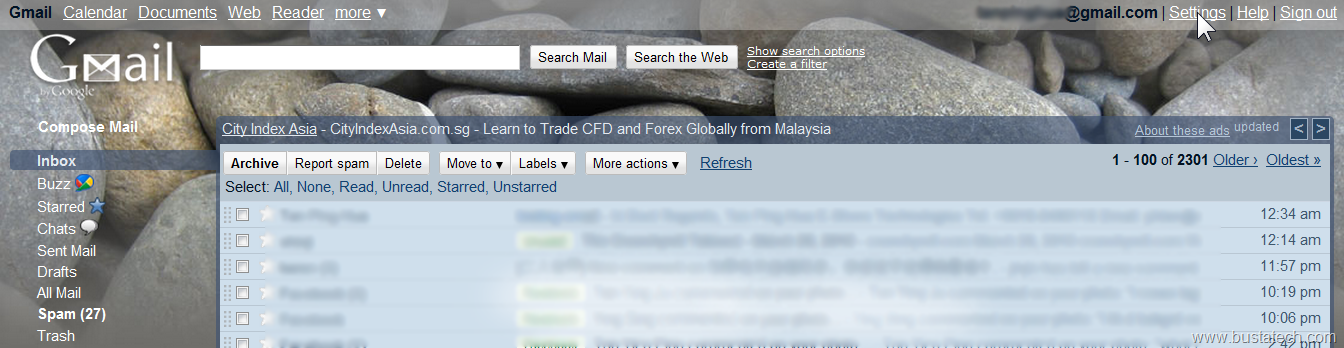
Under Gmail setting, you can set the Email Forwarder to forward every incoming mail to another email address. To enable the Email Forwarder, click on Settings at the top right of the Gmail page.
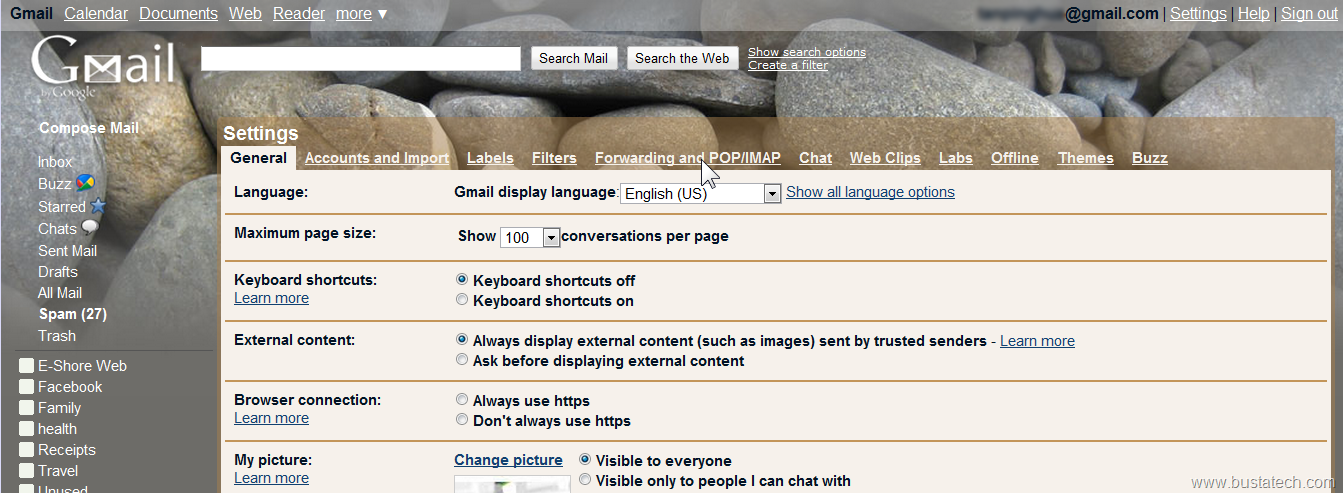
Then click on Forwarding and POP/IMAP at the Settings Menu.
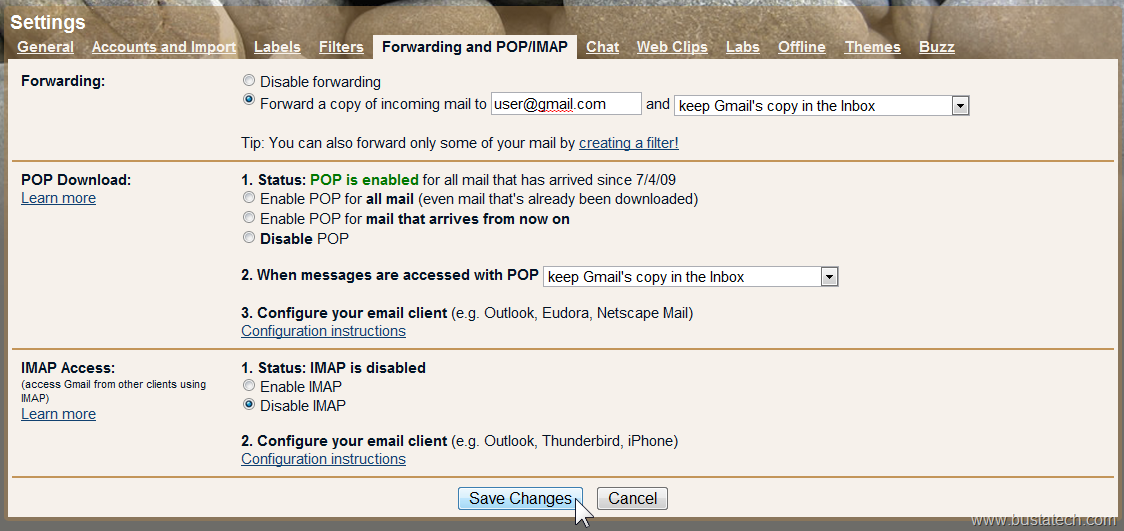
Under Forwarding and POP/IMAP, Click Forward a copy of incoming mail to [ ] and [ ]. There you can set the destination email and you can also choose to keep, archive, or delete the Gmail’s copy.
YouTube New Page Layout
I think I don’t have to introduce YouTube, www.youtube.com, a popular video sharing site, recently has launch new page layout.
Old YouTube Interface:
![]()
Convert PDF to Microsoft Word Document
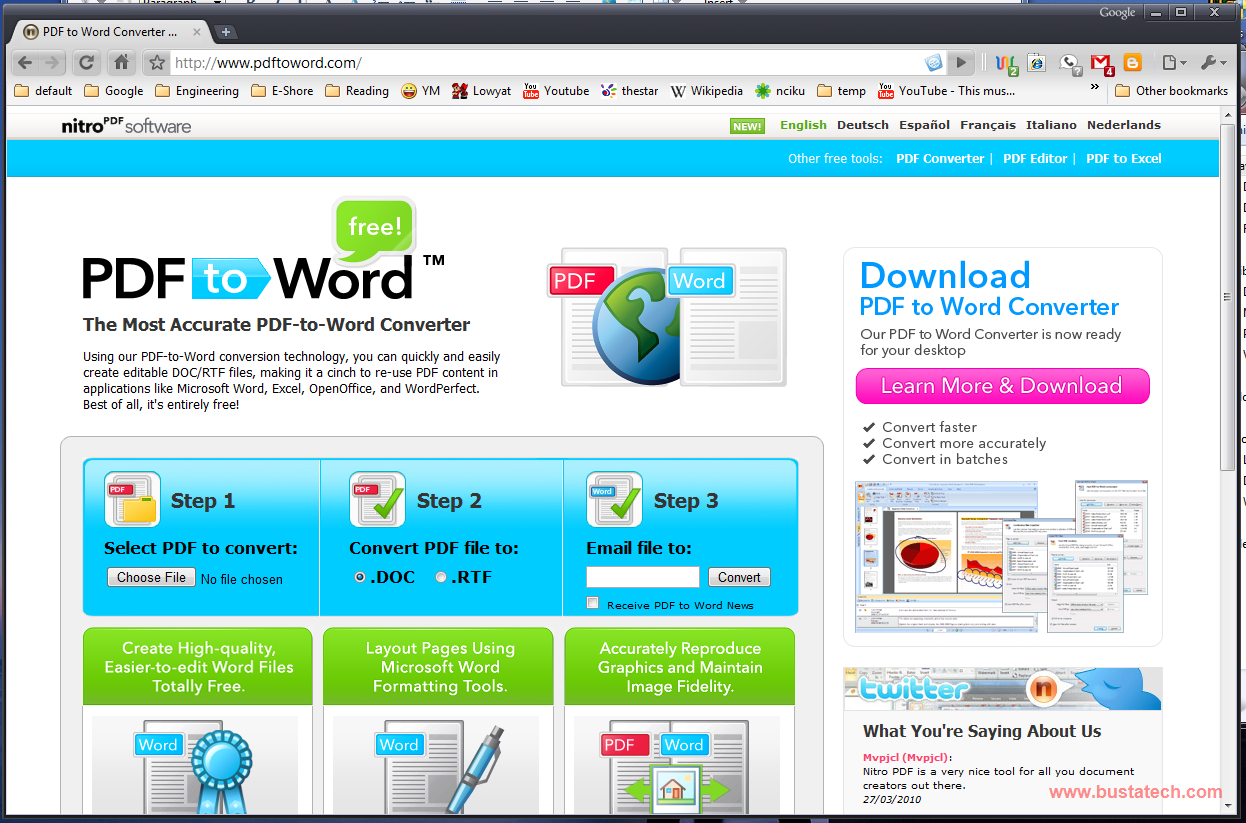
How you normally convert PDF file to Microsoft Word document? I found a very nice website, that you can convert PDF file to Microsoft Word document without the need to install a software! www.pdftoword.com
How to Create Different Profile for Google Chrome
Have you ever want to have different profile for Google Chrome? Sort like different user that have different theme, different bookmark, different history, different extension… Here is simple guide to create different profile for Google Chrome.
I will assume that you already have Google Chrome installed, or you can get it here. And the first step is to create a Google Chrome shortcut at the desktop.
How To Enable Offline Gmail
Today I am going to show the steps on how to enable Offline Gmail. First of all, let me introduce what is Offline Gmail. Offline Gmail is a very nice feature offered by Google that enable you to synchronize your emails on your inbox to your PC. I am not sure how Google store it, but after you enable Offline Gmail, and sync all your emails, you are able to check your Gmail (of course you cant receive new email) even if you are not connected to internet (only on that PC). For more information about this Offline Gmail, please click here.
The first step to enable the Offline Gmail, of course you will need to log on to your Gmail, and click the Settings at the top right corner of your Gmail Homepage.
Under the Settings, click Offline.