⚠️ Archived post. This article is from 2010 and is kept for historical reference. The product or service it describes has since been discontinued or significantly changed, so the steps and links below may no longer work.
Hi, today I would like to introduce a very nice desktop application called HTC Home, the website: http://www.htchome.org .
HTC Home is actually a widget, that runs on your desktop. It shows nice retro time, date and the weather with animation, and I believe all the HTC phone user are familiar with this widget. Yes it is just like the clock on HTC phones. Now, they bring the nice feature to Windows user. The best way to know more about this widget is to try it on your own. And one bad news about this widget is it only works for Windows Vista and Windows 7. I am using Windows 7 64-bit, so, I guess it support 64-bit as well. To get the widget, click on the Downloads at the menu bar in the HTC Home homepage.
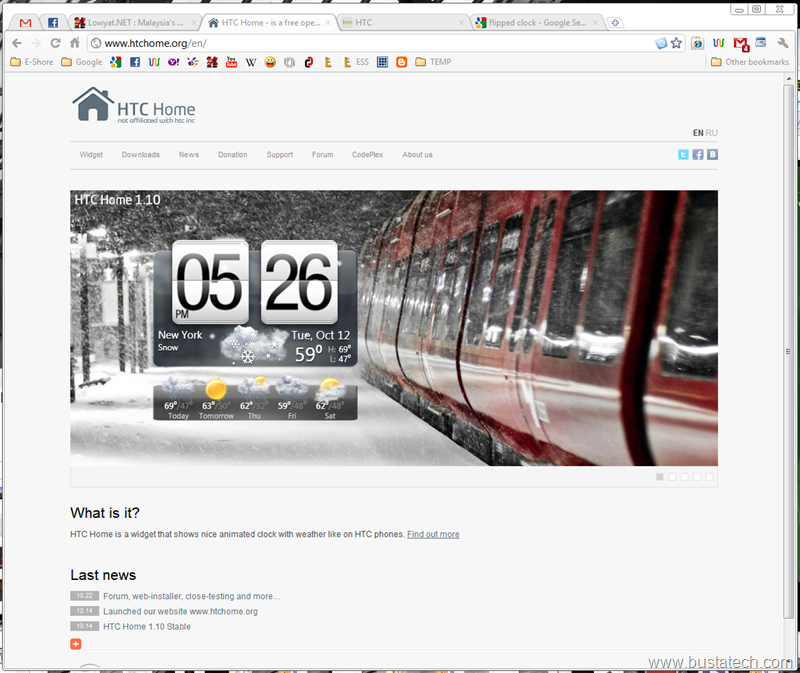
 At the Downloads page, click the big Download button.
 Click Accept and install.
 Now your download should begin.
 Double click on the downloaded file to install the software and allow the file to Run.


 After the download complete, check the Launch HTC Home and click Close.
 You should see a nice clock in the middle of your desktop.
 Right click on the widget and go to the Settings.
 At the Settings page, General tab, you might need to enable it Autostart with Windows if you like the widget, and keep it on top of all other windows is depends on your own preference. Other settings I just leave it default.
 Then the 2nd tab, my location is Sarawak, Kuching, but it doesn’t automatically search my location even the Automatically detect location is checked. So, I simply search my location and choose the correct one.
 Advanced tab, you can choose your temperature unit, and the time format you like. And some of the settings like the Time format and temperature unit requires a restart for the application (not restarting your Windows) to make the changes visible.
 And for your information HTC Home is actually an open-source project which is supported by donation.
 After all the settings complete, click OK and now you can drag the widget on your desktop to the location you like. I like it on the top right corner.
 Right click on the widget again to Pin it to your desktop, to prevent it from accidently dragged. The next time you want to drag it to different location on your desktop, you’ll need to un-Pin it.
 For me, this is a nice piece of software/application, and so far no problems/bugs happen on my PC, the clock and animated weather run nicely and smoothly. One thing bad about the application might be the Memory consumption. If you fire up Windows Task Manager, and go to the Processes, you can see that it actually use up to around 40+MB of RAM, which is quite a large number for a Clock widget.
  But still, for me, I would continue using the widget. 40MB of RAM is also not a big number for 4GB, 6GB and 8GB of RAM in most of the PC nowadays. But comparing this widget to the default Windows 7 clock widget, I will choose the HTC Home.
 Now, have a try: http://www.htchome.org . Feels free to leave comments on anything you feels about the widget and maybe problems occur when you are using it.
Cool!!
For those who have problem getting the weather updates, please change the Weather provider to MSN. Accuweather is no longer available for HTC Home.